 DisplayTune
Rust FPS boost with DisplayTune Quick optimization
The Quick optimization tab has two buttons: one tunes graphics inside Rust, the other cleans and configures Windows. Everything that changes is saved and can be restored with a single button.
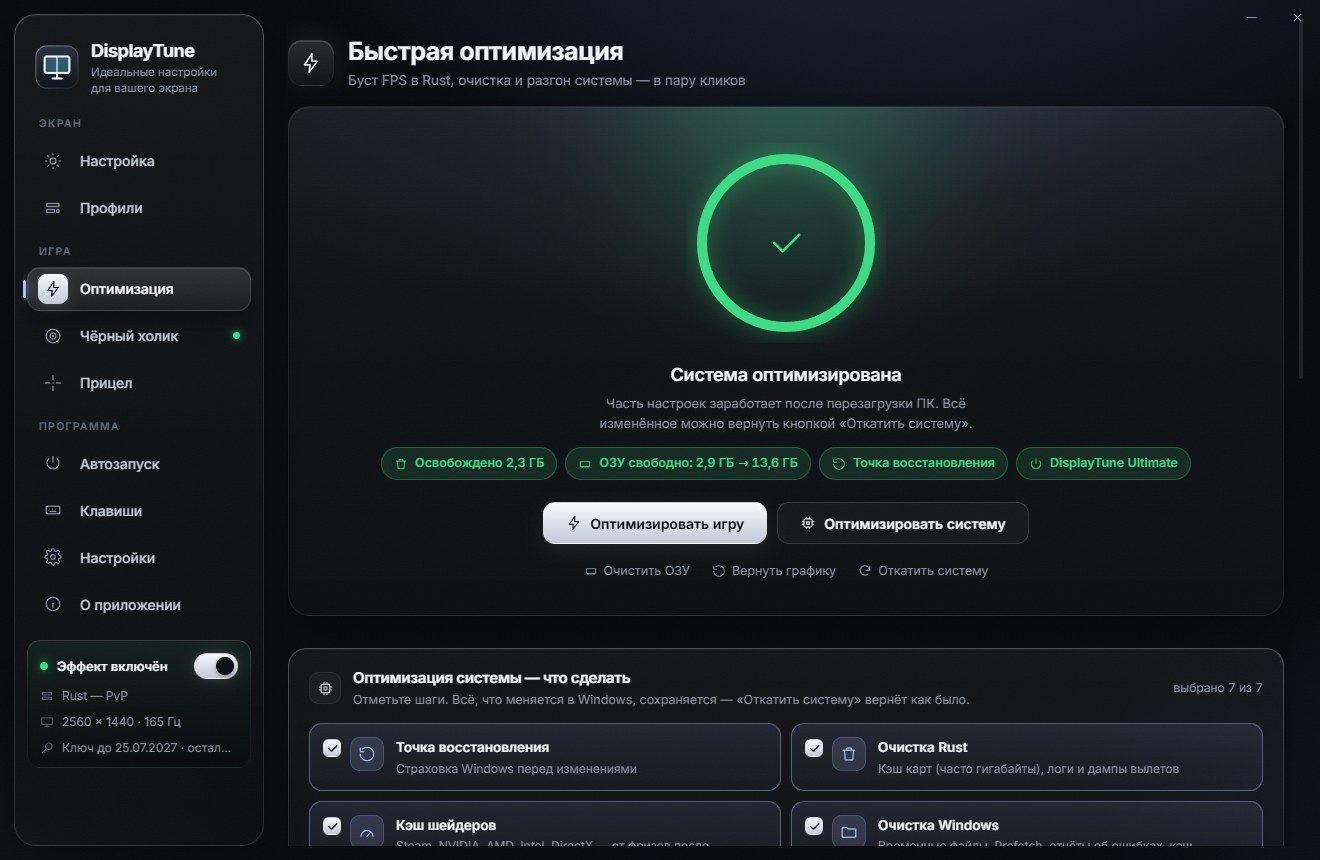
The "Optimize game" button
The app finds Rust through Steam on any drive, makes a copy of client.cfg and changes only graphics lines in it. Sound, mouse, binds and everything else stay as they were. If Rust is running, the app asks you to close it first — otherwise the game overwrites the file on exit.
| What changes | Value |
|---|---|
| Water and reflections | minimum |
| Shadows, contact shadows, grass shadows | minimum / off |
| Grass, trees, meshes, terrain, particles | minimum |
| Motion blur, bloom, DOF, sun shafts, vignette, lens dirt | off |
| Anti-aliasing and anisotropic filtering | off |
| Draw distance | 1500 — so you still see players in PvP |
| gc.buffer | 4096 with 16 GB RAM or more, otherwise 2048 |
The "Optimize system" button
It opens a console window with administrator rights and runs these steps (pick them with checkboxes):
- A Windows restore point before any change.
- Rust cleanup: the map cache (the
mapsfolder, often gigabytes), logs and crash dumps. - Shader cache of Steam, NVIDIA, AMD, Intel and DirectX.
- Windows cleanup: temp files, Prefetch, error reports, update download cache, DNS cache.
- Power: the "DisplayTune Ultimate" plan — CPU at 100%, no core parking, USB and PCIe never sleep (on AC power only).
- Windows game settings: Game Mode on, Xbox background recording off, games get scheduling priority.
- RAM cleanup — the same thing RAMMap and ISLC do.
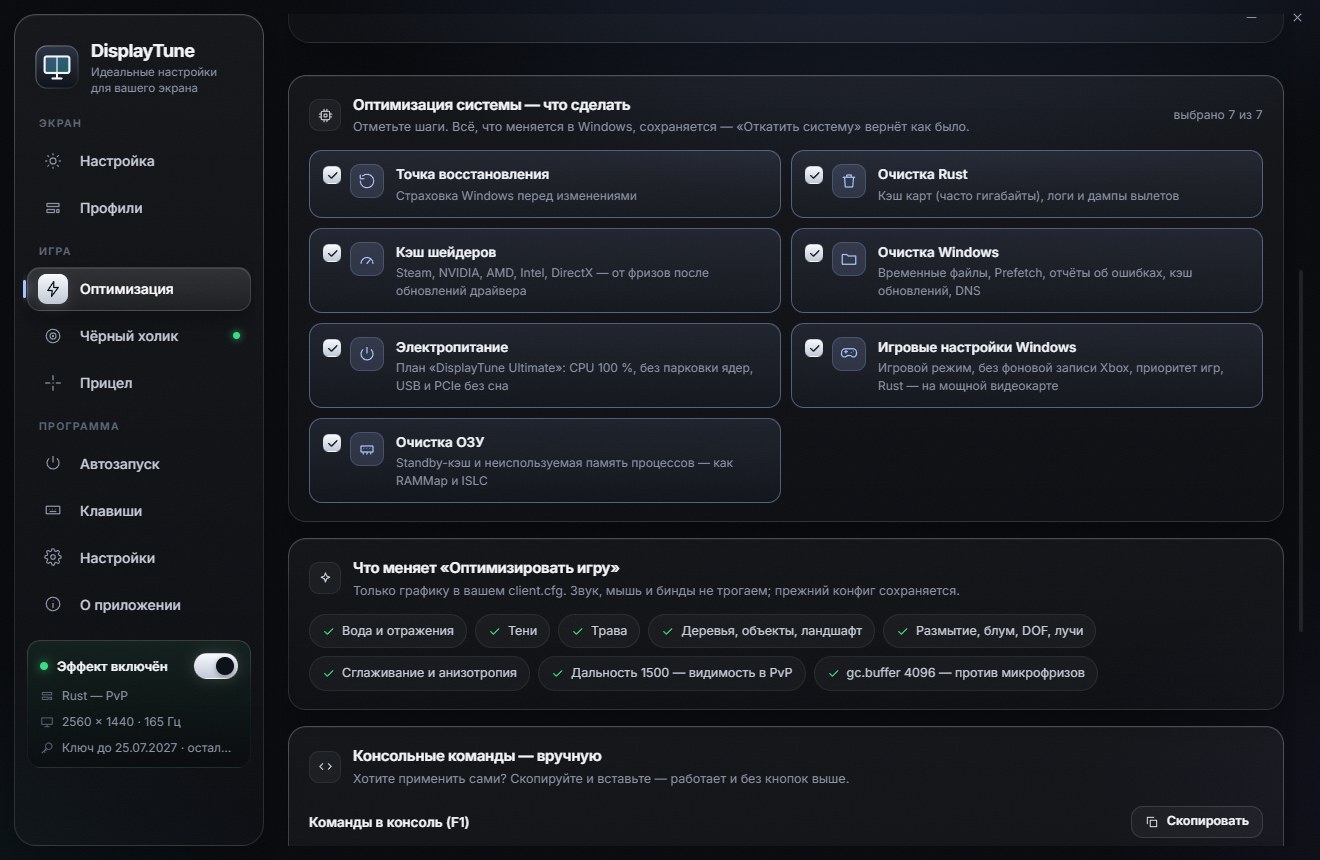
Each step in detail: clearing the Rust map cache, shader cache, RAM cleanup and the Ultimate Performance power plan.
Revert
"Restore graphics" puts your previous client.cfg back from the copy. "Revert system" returns the power plan and every changed Windows setting to exactly what it was before. Only caches and temp files are deleted — the game and Windows recreate them.
Good to know
- After clearing the map cache, the first join to each server takes a bit longer — the map downloads again.
- After clearing the shader cache, the first launch of games can stutter while shaders compile again.
- Some system settings take effect after a reboot.
Prefer doing it by hand? All commands are in Rust console commands for FPS and memory.
FPS boost through client.cfg, map and shader cache cleanup, power plan and RAM cleanup — plus color profiles for every biome. First day free.
Try it freePricing — from 200 RUBWant to see how it looks first? Load your own screenshot into the free Vibrance simulator →
Frequently asked questions
Will the optimization break my Rust config?
No. A copy of client.cfg is made first, only graphics lines change, and "Restore graphics" puts the original file back.
What does the system cleanup delete?
Only caches, temp files, logs and dumps. Saves, documents and game files are never touched.
Where is the Rust client.cfg?
In the game folder: Steam\steamapps\common\Rust\cfg\client.cfg. DisplayTune finds it through Steam on any drive.